Integration with Outpost for Review & Approval
Outpost is an online review and approval tool designed to make collaboration easier.
Once EVO has been outfitted with the Outpost plugin, any users with permissions will be able to start sending files to Outpost without leaving ShareBrowser.
Note: EVO must have a valid gateway configured with the ability to send files to outpost.cloud.
First, log in to ShareBrowser with a valid user, choose a single file, right-click, and choose Send to Outpost.
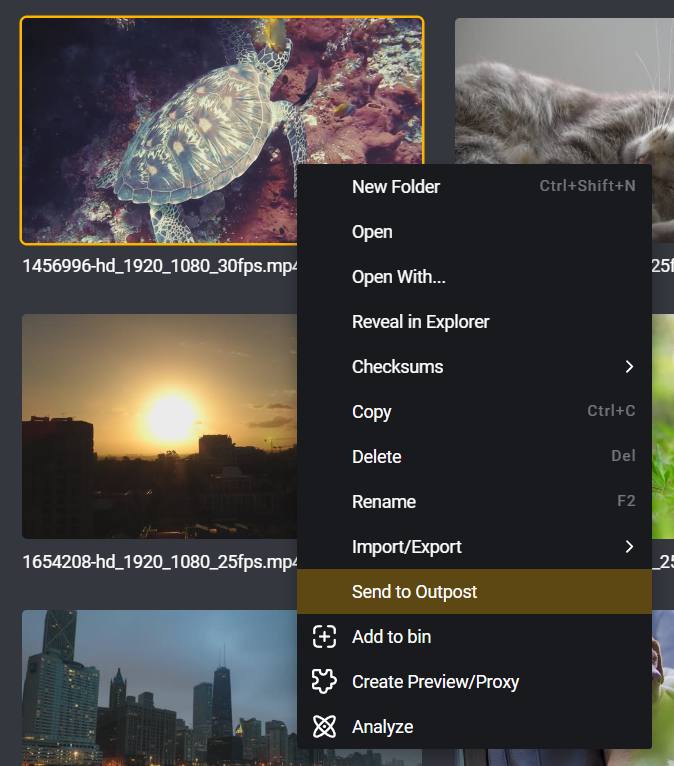
Note: Send to Outpost will appear for any file, but will only succeed for video and image files (not all files are supported).
This will allow you to choose whether the file will be Public (anyone with the link can view) or Private (only invited emails can view).
You will also be prompted with a list of invitees and an optional message.
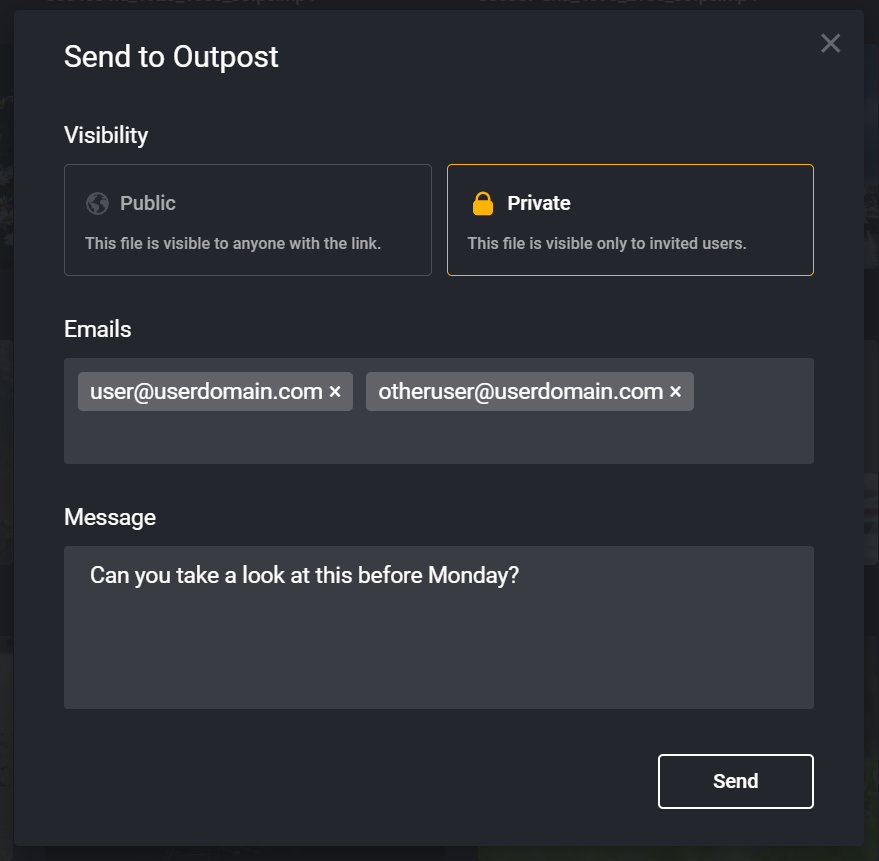
Here you can add a list of emails to receive a link to your file as well as a custom message which will appear in their email invite.
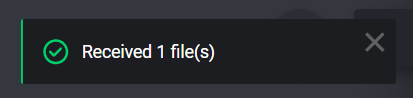
After clicking send, you will see a message in ShareBrowser:
After a minute or so, and having clicked off and on to that file again, you should also see a new Outpost field which will have a status of Queued, then Processing.
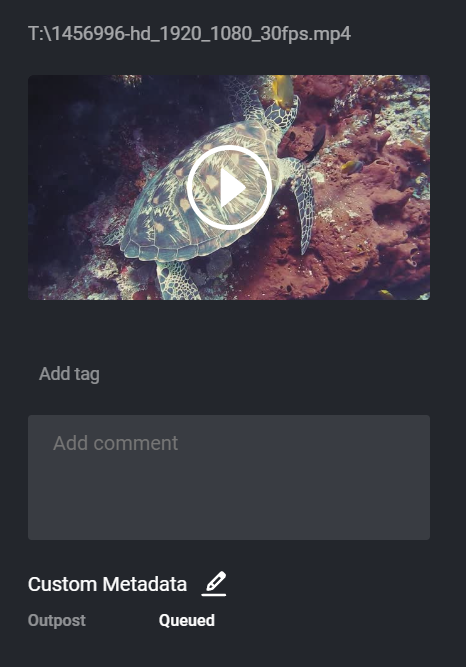
When a file is Queued, it was found by the plugin and will process when Slingshot is available. When a file is Processing, it is being transcoded by Slingshot into an h.264/mp4 file and uploaded to Outpost.
Once the file is completely transcoded and uploaded, the link will appear in ShareBrowser.
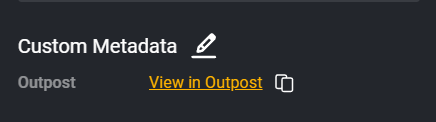
This link can be clicked to open in your default browser or copied by clicking the copy icon.
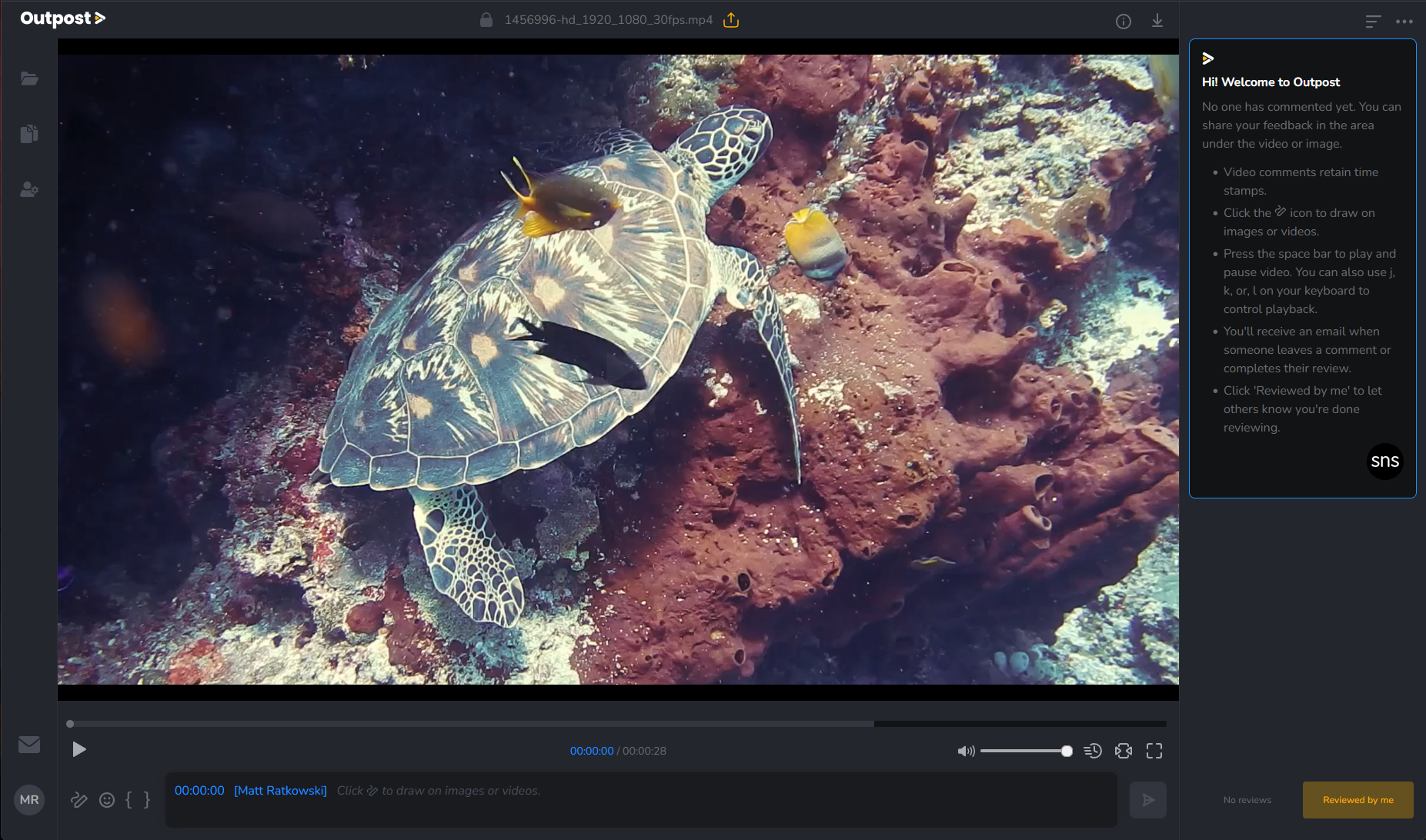
The user that sent the file will receive an email. Invitees will receive an email with the optional custom message.